
Which version are you in?
Look at the menu on the left. If you see Loans with a New label, follow the first set of steps. If your leases sit inside your assets, follow the second set.
In Loans (new)
In Loans, you do not need a master lease. One loan can cover several assets, with the amount financed split between them on one page, and an asset can be taken off the loan when it is sold. Linking more than one asset to a loan is currently available on the Premium plan. See One loan for several assets.
Loans is new and we are still adding to it. Bulk actions for loans are not available yet. See What is coming next in Loans.
In the current version
AssetAccountant allows the management of leases which cover multiple assets, in particular using the following features:
- Creation of a "Master Lease"
- Allocation of assets to a Master Lease
- Splitting the total amount financed across these assets
- Reduction of the remaining lease balances in the event of a partial pay-out
This article covers Step 4.
4. Reducing lease balances after a partial pay-out
If you need to partially pay-out a lease because one asset has been removed you will need to follow two steps being:
(1) manage the partial pay-out of the lease and then,
(2) dispose of the asset for any proceeds you have received.
Step 1 - Partial pay-out
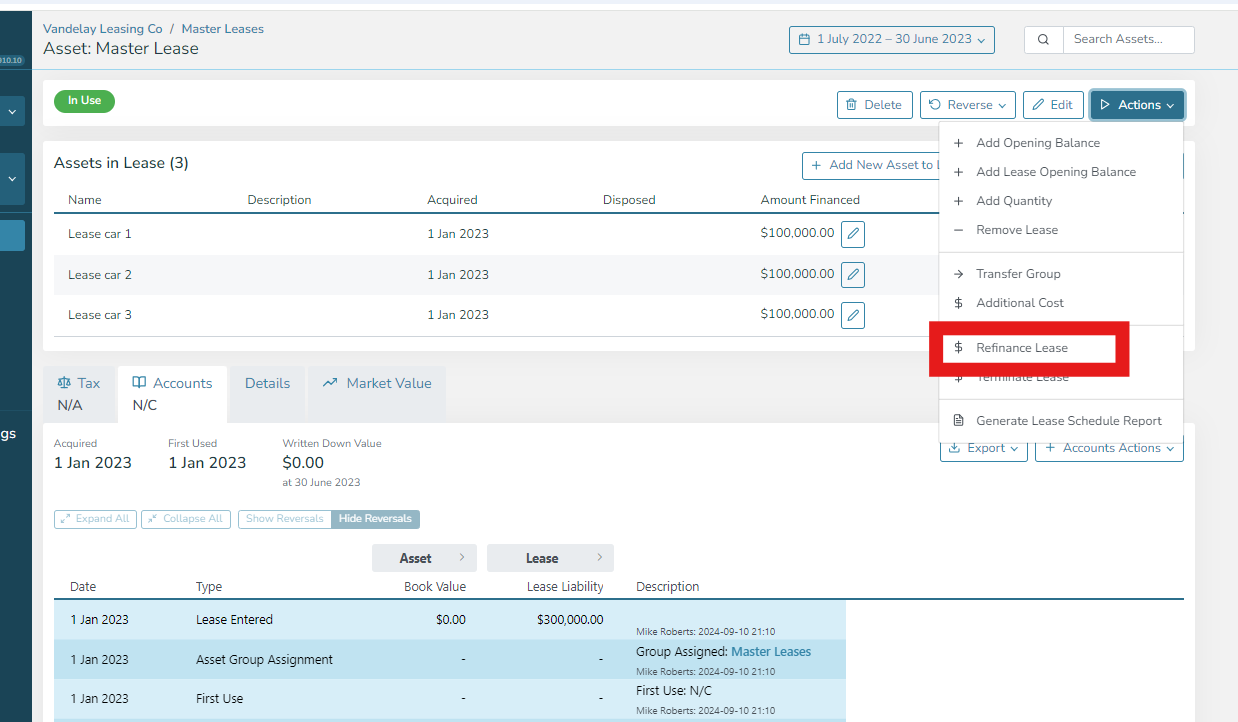
The partial pay-out is managed by means of a refinancing. When this occurs, from the Master Lease screen
click the "Refinance Lease" option and a side panel will appear. In this you will be able to confirm which assets are still in the lease and then confirm or adjust the payment schedule for the lease following the partial-pay-out.
As shown below:
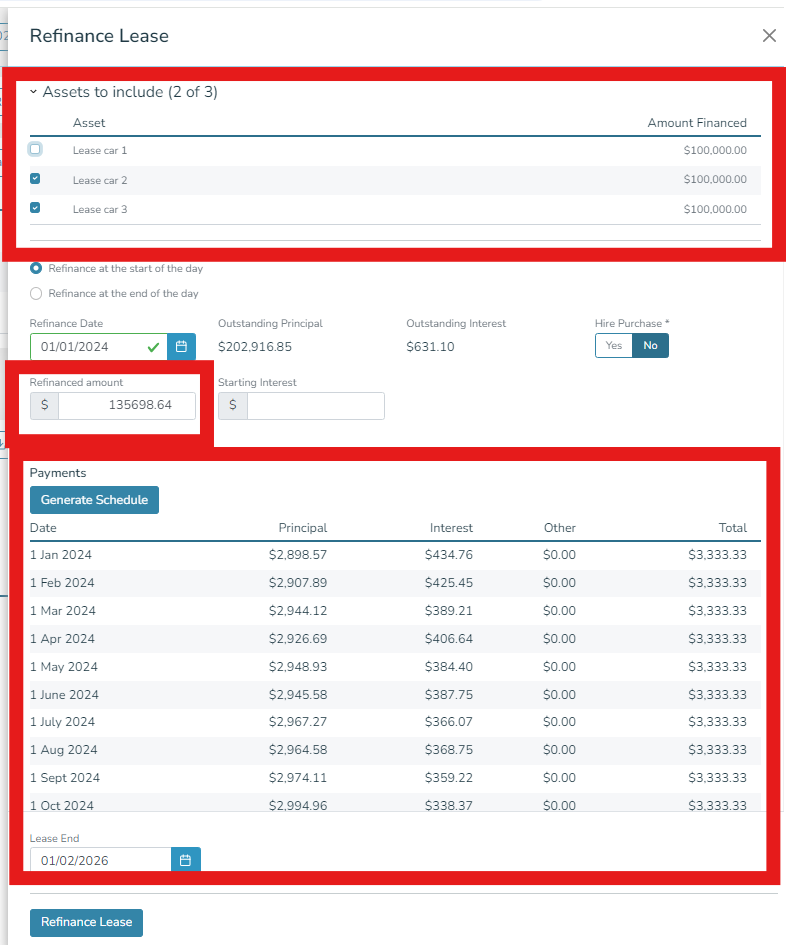
Once you have unticked the asset (or assets) that will not be part of the lease going forwards the system will pro-rate all the other items in relation to this lease based on the proportional amounts financed for the assets in that Master Lease (shown in the bottom two red boxes above).
You can either refinance the lease using these or, if the schedule or amount that remains as the outstanding liability are different for any reason then manually adjust those using the middle box above and/or pressing "Generate Schedule" in order to add the new payment schedule.
Step 2 - you can then dispose of the asset as you would for a normal asset disposal.