
In Loans, you add a loan from the Loans screen and link it to the assets it financed. This article shows how to add one loan at a time. To add several loans from a file, see Add your assets, then import your loans. To check whether your register has Loans, see Am I in the new Loans feature?
Before you start
You can link a loan to assets that are already in your register. If you have not added them yet, add them before you create the loan, or save the loan and link them later.
Step 1: Payments
Select Loans, then Add Loans. On Single Loan, a loan is entered in three steps: Payments, Description and Assets.
- Enter the Commencement Date. Contract Date is filled in with the same date. Change it if your contract was signed on a different day.
- Enter the Amount Financed and, if you know it, the Interest Rate.
- Enter the first Payment Date, the Payment Amount, the Frequency and the Quantity, which is the number of payments. If one payment differs from the rest, select + Add Payments and enter it on its own row.
- Select Generate Schedule.
AssetAccountant builds the payment schedule and shows the calculated interest rate, the last payment date and the term of the loan. If the payments do not balance exactly against the amount financed, a message tells you the average adjustment made to each interest payment to balance the schedule.
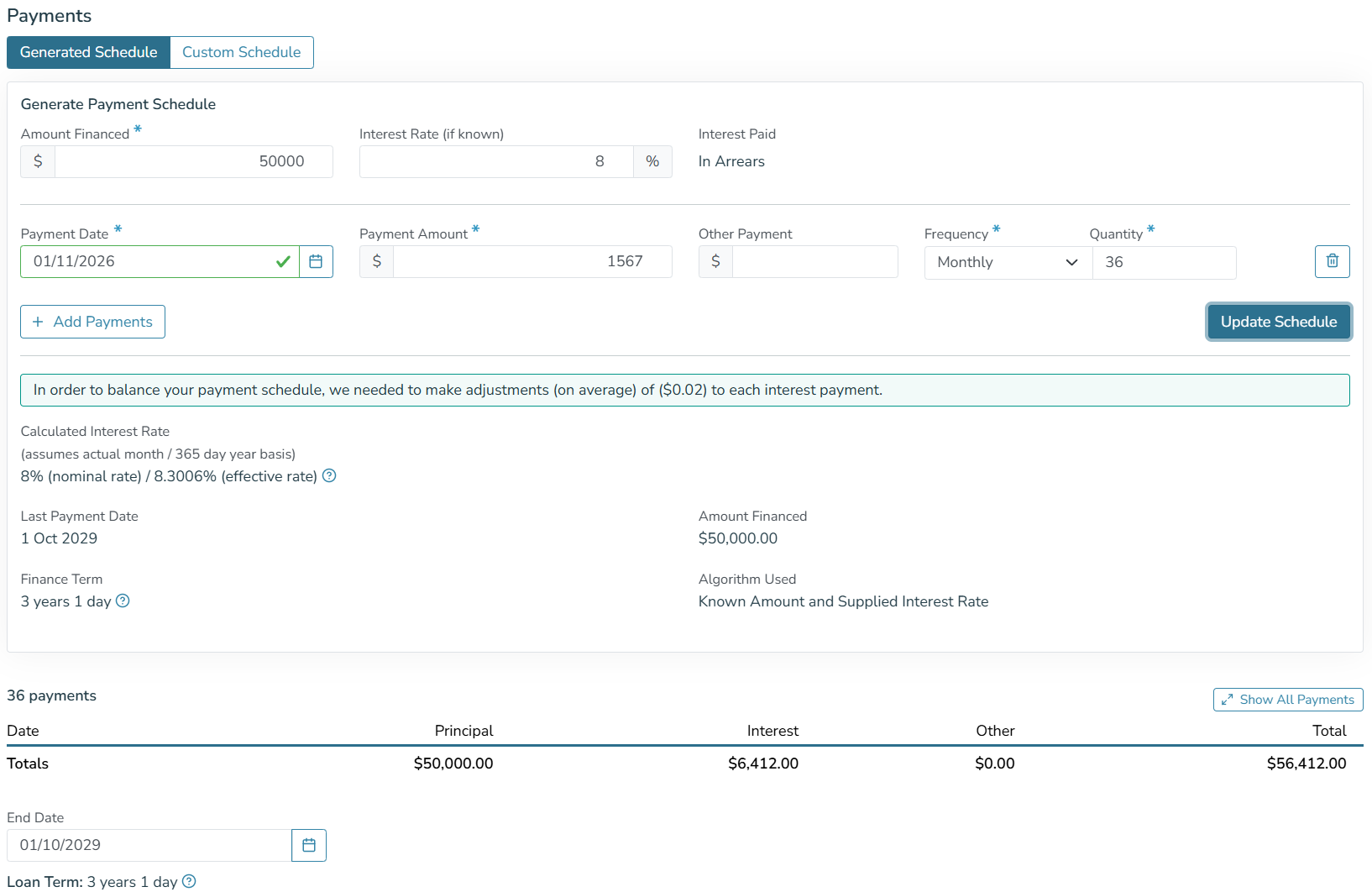 Loans (new) - a generated payment schedule.
Step 2: Description
Enter a Name and choose a Group. Both are required. Loans can use the same groups as your assets, or select Add New Group. Code and Reference are optional. Choose the lender under Finance Provider, or select Add New Finance Provider. It is optional too, but the finance provider is shown on the Loans screen and in reports, so it is worth filling in.
Step 3: Assets
You can add assets to the loan now, or save the loan and add them later from its Assets tab.
- Select Add Existing Assets, tick the assets the loan financed and add them.
- Enter the Amount Financed for each asset. Unallocated shows how much of the loan is not yet assigned to an asset.
- Select Save.
Linking more than one asset to a loan is currently available on the Premium plan. See One loan for several assets.
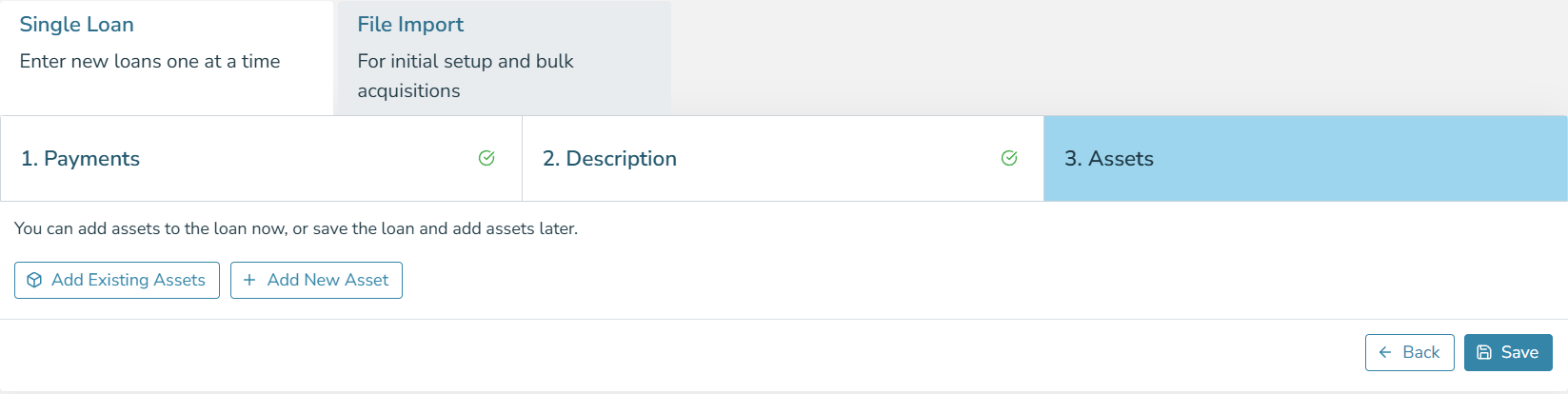 Loans (new) - adding the assets a loan financed.
The loan is created and opens straight away. To find your way around it, see Getting started with Loans.
Loans is new and we are still adding to it. Bulk actions for loans are not available yet. See What is coming next in Loans.