
AssetAccountant doesn't have a built-in function to split an asset that has already been entered and depreciated. You can still split it into separate assets, each depreciating over its own useful life, using the four-step workaround in this article.
Use it when an asset was grouped together in error, for example a batch of items that were bought or put into use at different times and so need different useful lives. Because each new asset keeps the original acquisition and first use dates, the correction is applied retrospectively from first use.
Before you start
Save a full record of the original asset and gather its key details before you change anything.
- Export the asset's details and transaction history, using the Export CSV button on the asset or the Asset Export report.
- Note the original asset's cost, quantity, Acquisition Date and First Use Date. Every new asset will reuse the same two dates.
- Note which registers the asset depreciates in (Tax, Accounts or both). Step 1 needs doing in each of them.
- Decide how the original cost will be shared between the new assets, usually by the number of items in each group. The new costs must add up to the original cost.
Step 1: Reassess the existing asset
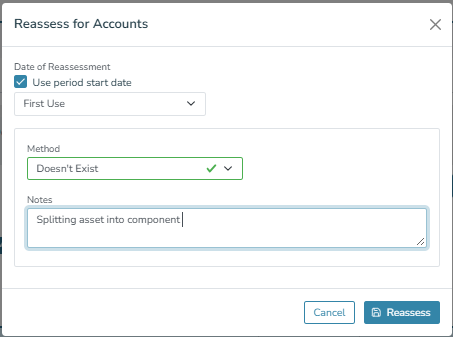
Reassess the original asset from its first use date with the method set to "Doesn't Exist", so it stops carrying any depreciation of its own.
- Open the original asset and select the register tab you're working in.
- Click Accounts Actions and choose Reassess.
- Tick Use period start date and select First Use from the dropdown.
- Set Method to Doesn't Exist.
- Optionally, add a note for future reference, for example "Splitting asset into components".
- Click Reassess.
- If the asset also depreciates in the tax register, repeat these steps there.
Step 2: Add the new assets as components
Create each new asset as a component of the original, using its share of the cost and the original dates.
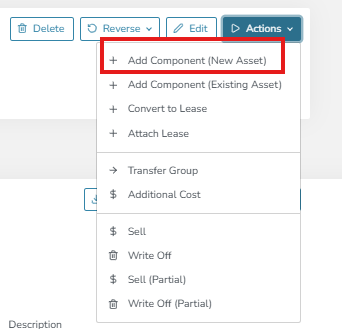
- On the original asset, click Actions and choose Add Component (New Asset).
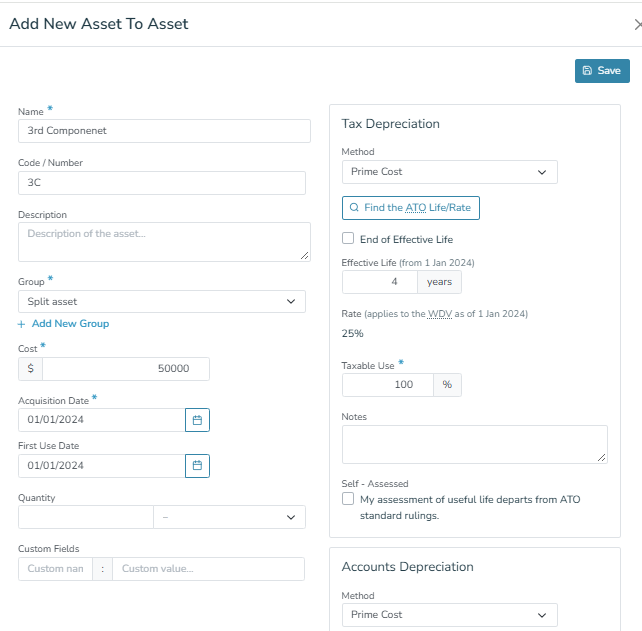
- In the Add New Asset To Asset window, complete the details for the first new asset:
- Name and Code / Number: something that identifies the group, for example "Group 1".
- Group: the asset group it belongs to.
- Cost: this asset's share of the original cost.
- Acquisition Date and First Use Date: exactly the same dates as the original asset.
- Quantity: the number of items in this group, if you track quantity.
- Tax Depreciation and Accounts Depreciation: the method and effective life that apply to this group.
- Click Save.
- Repeat for each remaining new asset.
The costs of all the new assets must add up to the original asset's cost. If you're splitting by number of items and the cost doesn't divide evenly, put any rounding difference on the last asset.
Step 3: Check the components
Once added, the new assets appear as components under the original asset, and only the components depreciate.
- Every new asset is listed under the original asset.
- The original asset no longer generates depreciation entries.
- Each component depreciates from the original first use date under its own effective life.
- The components' costs add up to the original asset's cost, and their quantities add up to the original quantity.
Because the useful lives have changed, the components' combined written down value will differ from the original asset's. That difference is the retrospective correction.
Step 4: Write off the parent asset
As the last step, write off the original asset so only the new components remain in use.
- On the original asset, click Actions and choose Write Off.
- Complete the write-off.
The components keep depreciating until the end of their useful lives.
Worked example
An asset with a cost of $100,000 and a quantity of 100 items is split into four groups by number of items, at $1,000 per item. All four use the original Acquisition Date and First Use Date.
New asset | Quantity | Cost ($) | Effective life |
|---|---|---|---|
Group 1 | 40 | 40,000 | 5 years |
Group 2 | 30 | 30,000 | 4 years |
Group 3 | 20 | 20,000 | 3 years |
Group 4 | 10 | 10,000 | 2 years |
Total | 100 | 100,000 |
Frequently asked questions
Is Add Component (New Asset) the right feature for this? Yes. Combined with the reassessment in Step 1 and the write-off in Step 4, it lets you replace one asset with several, each with its own useful life.
If the groups are equal, does each get an equal share of the cost? Yes. For example, four equal groups would each receive 25% of the original cost.
Should the new assets' total cost equal the original cost? Yes. The split only reallocates the original cost, so the totals must match.
How is the existing accumulated depreciation allocated? You don't need to allocate it manually. Because each component uses the original first use date, the platform recalculates its depreciation from that date under its own useful life.
Need help? Contact our support team, especially if journals for the asset have already been posted to your general ledger.