
Which version are you in? Look at the menu on the left. If you see Loans with a New label, follow the first set of steps. If your leases sit inside your assets, follow the second set.
In Loans (new)
Loan journals are created in the same place as depreciation journals. Before you post a journal, make sure the general ledger accounts are mapped for each asset group your loans belong to. See Set up and mapping of lease general ledger accounts.
Create the journal
- Select Journals from the menu on the left, then select Create.
- Set the dates. For the first journal in a register, choose a Start Date and an End Date. After that, each new journal only asks for the Date of Journal and starts where the previous journal ended.
- Check the Description. It is filled in for you, and you can change it.
- Under Include, leave All selected to include both asset and loan entries. To create a journal for loans only, clear All, then select Loan Additions, Loan Disposals, Loan Payments and Loan Current/Non-Current Movements.
- Select Create. The journal is saved as a draft.
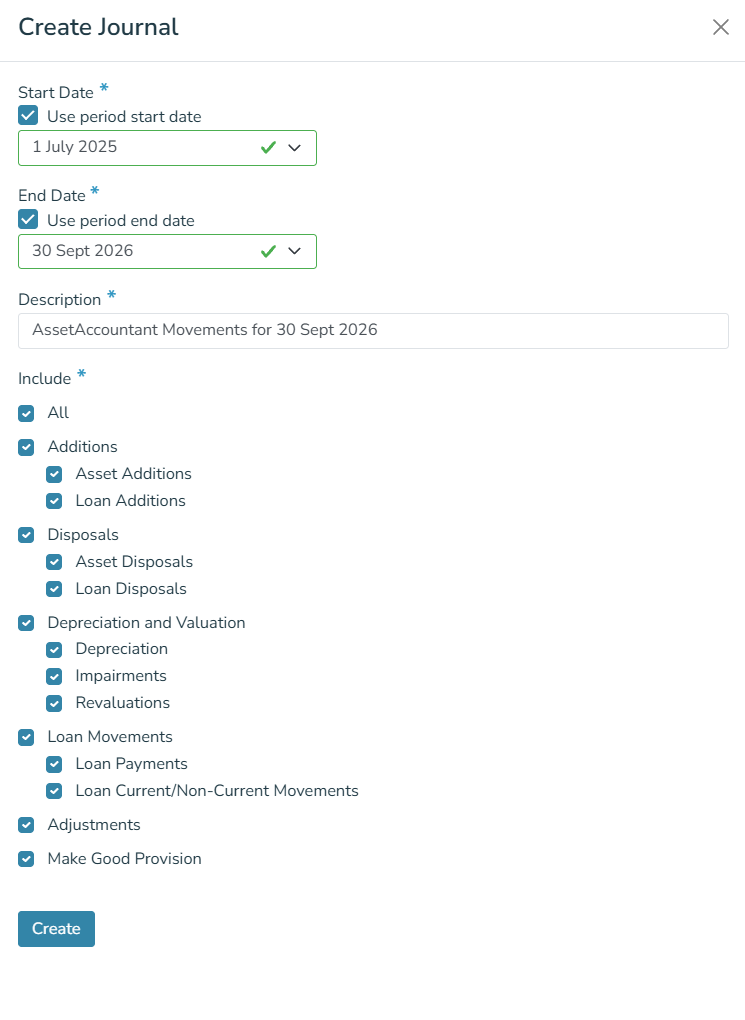 Loans (new) - creating the first journal in a register.
If you imported a loan with an opening balance, journals include that loan only after its opening balance date. Nothing on or before that date is journaled, because that is where AssetAccountant takes over from your previous system. For more about opening balances, see Add your assets, then import your loans.
Review the journal
Open the journal to see its lines, with the general ledger account, debit, credit and description for each one. Select By Group to see the lines for each asset group, or By GL Account to see them by account.
To see which loans make up an amount, select Show Details under the line.
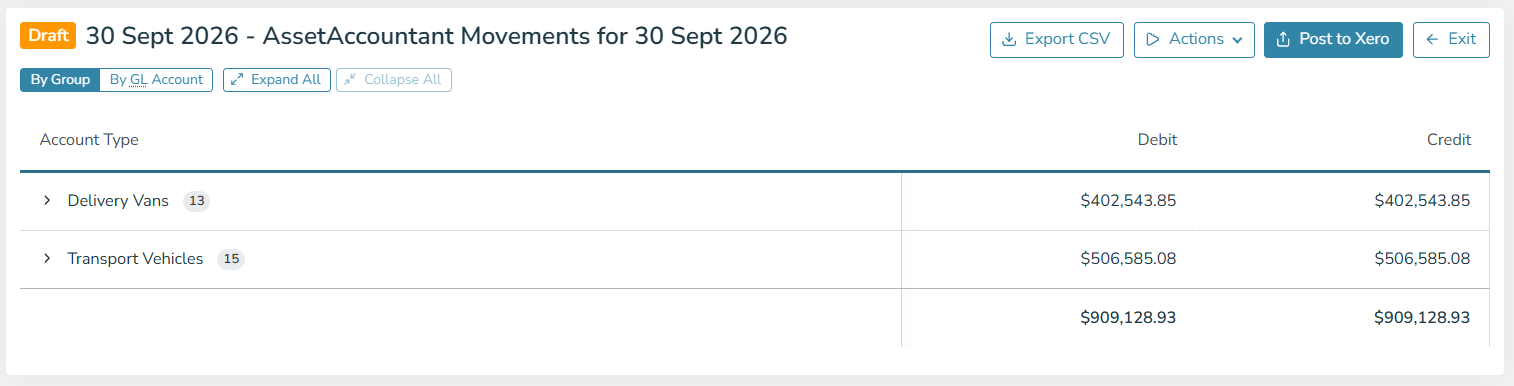 Loans (new) - a draft journal, viewed by group.
Export or post the journal
Select Export CSV to download the journal as a file.
If your register is connected to Xero, select Post to Xero. In the panel that opens:
- Choose how entries to your clearing account are posted. Separate clearing account entries posts a separate entry for each transaction, which makes bank reconciliations easier. Combine clearing account entries posts aggregated entries.
- Under Choose transactions to post, leave All selected, or select only the transactions you want to post.
- Select Post.
The journal is posted straight away as a final manual journal, so review the lines before you post.
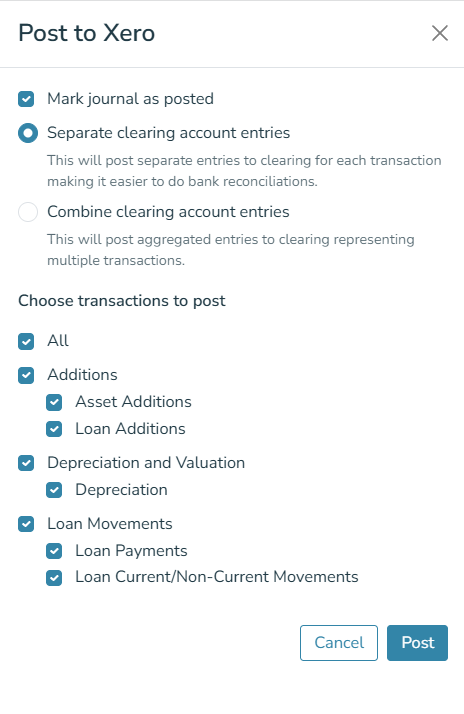 Loans (new) - posting a journal to Xero.
After posting, the journal is marked Posted, with a message showing the date it was posted to Xero. Select View this journal in Xero to open it in Xero, where it appears as a manual journal.
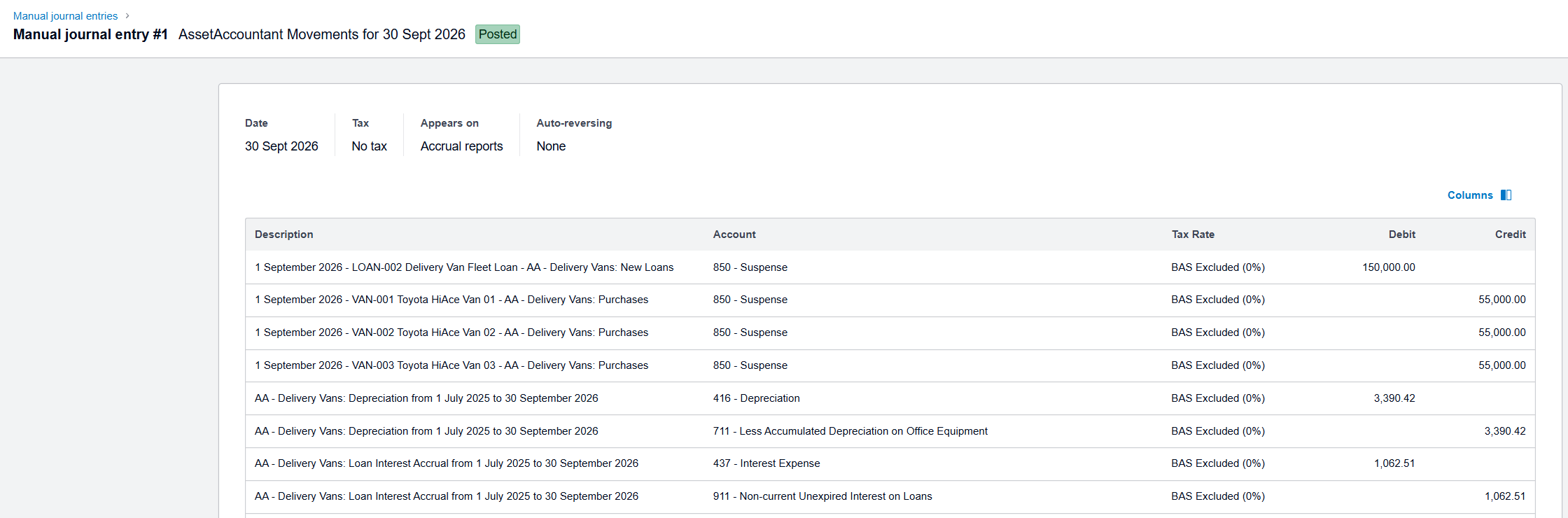 Loans (new) - the posted journal in Xero.
Loans is new and we are still adding to it. Bulk actions for loans are not available yet. See What is coming next in Loans.
In the current version
Posting Lease Journals follows the same process as posting Depreciation Journals. Open the Journals section on the left-hand menu (1), and press "+ Create" (2).

On the side panel, set the date of the Journal (1). To make it a Lease Journal, uncheck "All" (2), then select all the details related to Leases that you wish to include in your Journal (3). When you're done, press "Create" (4).

The Journal has now been created, and you can now export it to a spreadsheet, or post it to the integration of your choice (so long as your General Ledger Accounts are mapped).
