
What’s changed: The classification/dimension value mapping limit has been increased from 6,000 to 10,000 values. To support this larger list, the Map new values section no longer displays all values up front — you now need to search to find the value you want to map.
If you have a large number of Sage Intacct dimension values, you may have previously seen a limit on how many could be mapped inside AssetAccountant. That limit has been raised to 10,000 values per dimension.
As part of this update, the interface for the Map new values section has changed slightly. Previously, all unmapped values were listed immediately on screen. Now, the list only appears after you type a search term. This keeps the page fast and usable even when thousands of values are available.
The values are all still there, they just won’t appear until you start typing.
How to map a new dimension value
- Go to Register Settings › Classifications, locate the classification/dimension you want to work with, and select Edit.
- Scroll down to the Map new values section and expand it if it is collapsed.
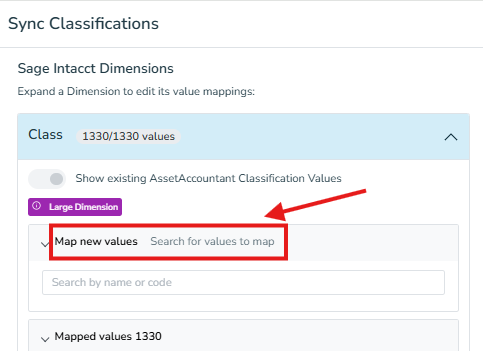
- In the search field, type part of the dimension code or name you are looking for. For example, typing nation will filter to all values whose code or name contains “nation”.
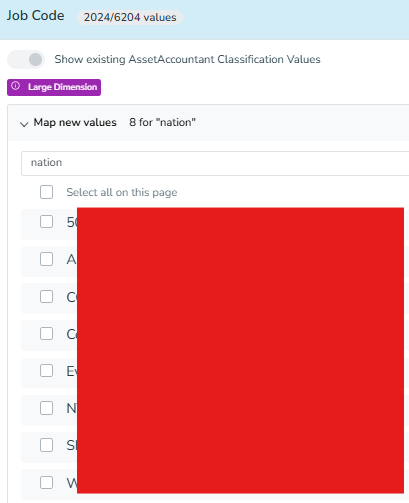
- Select the value(s) you want to map from the filtered results, assign them to the appropriate AssetAccountant classification, and save as normal.
- Once mapped, the value will move out of Map new values and appear in the Mapped values section, exactly as before.
Already-mapped values are not affected
Any values you have already mapped to an AssetAccountant classification will continue to appear in the Mapped values section as normal. No re-mapping is required.