Which version are you in? Look at the menu on the left. If you see Loans with a New label, follow the first set of steps. If your leases sit inside your assets, follow the second set.
In Loans (new)
In Loans, you can paste the schedule your lender gave you when you add a loan.
To add a loan with your lender's schedule:
- Go to Loans > Add Loans > Single Loan.
- Under Payments, select Custom Schedule.
- Copy the payments from your spreadsheet and paste them into the table. The table has columns for Date, Principal, Interest and Other.
- Complete the remaining steps and save the loan. See How to add a loan.
To import several loans, each with its own schedule, from a file, see Adding assets and leases in bulk with irregular lease payment schedules.
Loans is new and we are still adding to it. Bulk actions for loans are not available yet. See What is coming next in Loans.
In the current version
Sometimes you may find a small variance between the generated lease schedule in AssetAccountant and your finance company’s calculation, in terms of allocation of Principal and Interest.
You may like to import the lease schedule for Principal and Interest amount for each monthly payment so you can match the resultant schedule supplied by the leasing company.
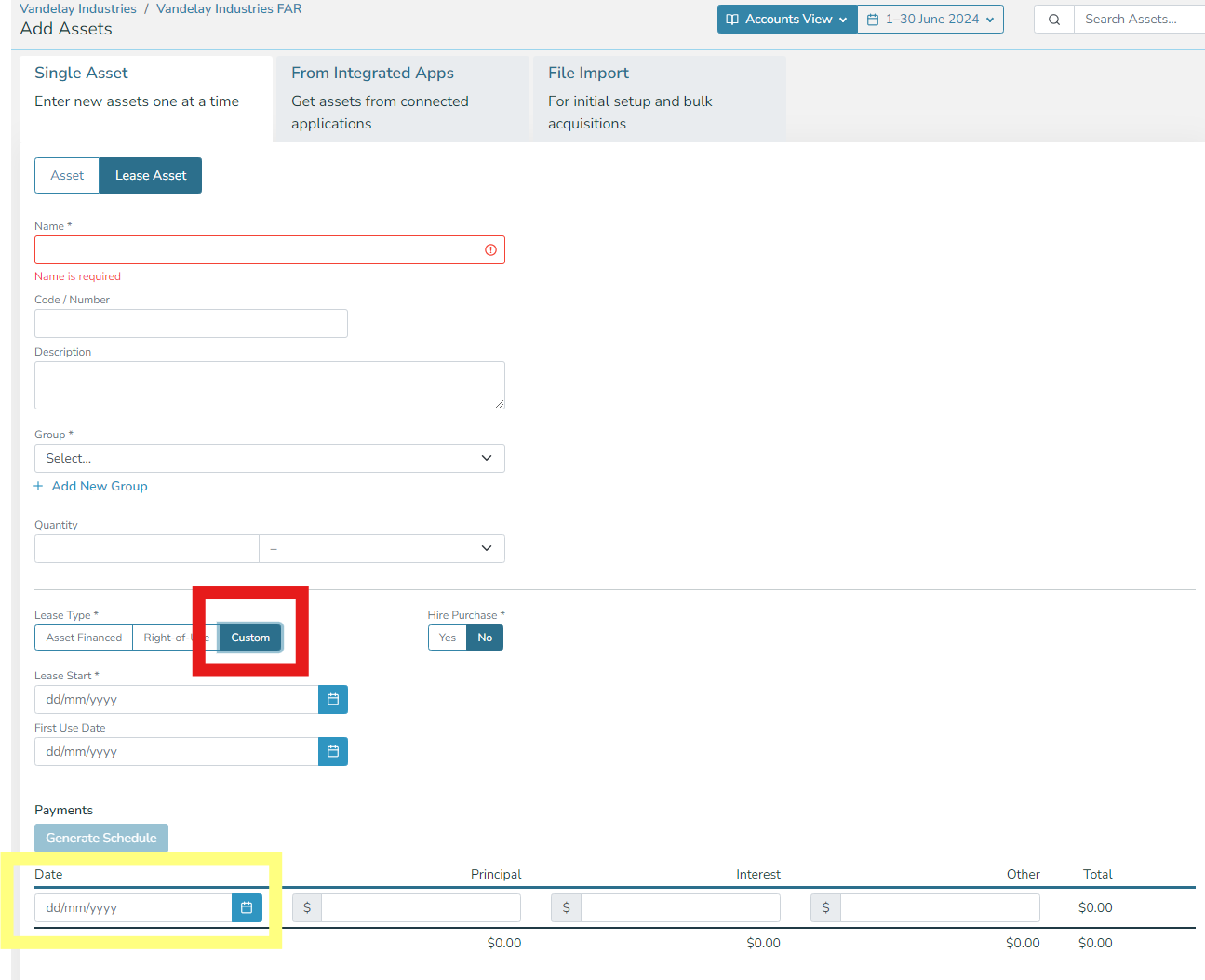
It is possible to copy and paste these financier supplied lease schedules into AssetAccountant. To do this, manually create a lease in the AssetAccountant system from "Add Asset > Single Asset".
Choose to enter a lease and pick the "Custom" option as shown in the red box in the screenshot below.
You will need a spreadsheet with the columns:
- Payment date
- Capital component of the payment
- Interest component of the payment
If you copy this, you can paste it into the yellow highlighted cell below and it will populate the table with the calculated split: