
Which version are you in? Look at the menu on the left. If you see Loans with a New label, follow the first set of steps. If your leases sit inside your assets, follow the second set.
In Loans (new)
In Loans, a refinance does not overwrite the loan. It creates a new version of the loan from the refinance date and keeps the earlier version, so you can always see the loan as it was before the refinance.
Use the same steps when your lender changes the interest rate on a loan.
To refinance a loan:
- Open the loan from the Loans screen, then select Actions > Refinance.
- Choose the Refinance Date. The panel shows the outstanding principal and the outstanding interest on that date.
- Enter the new amount and the payment schedule your lender has given you, then select Generate Schedule.
- Check the new schedule and save the refinance.
If you refinance on a payment date, the existing payment on that date is replaced or removed. Check that the first payment in the new schedule is correct before you save.
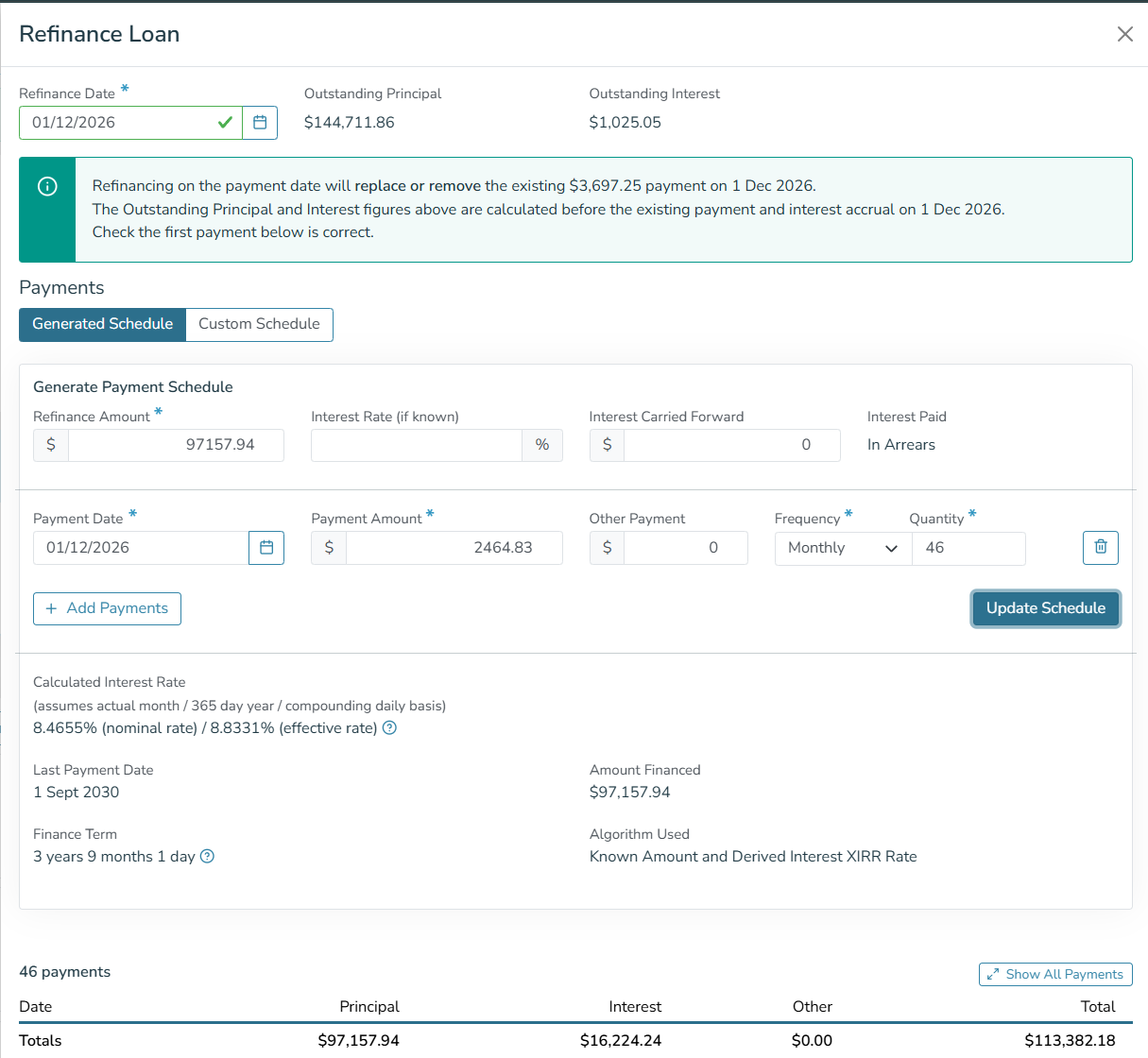 Loans (new) - refinancing a loan.
After the refinance:
- The top of the loan page shows the figures from the new schedule.
- The Timeline tab lists the refinance together with the earlier events on the loan.
- The Transactions tab shows a refinance entry on the refinance date. Its description sets out the adjustments made to principal and interest.
- To see the loan on any date, before or after the refinance, enter the date in Loan at at the top of the loan page.
If you are refinancing because an asset on the loan was sold and its share was paid out, see One loan for several assets.
Loans is new and we are still adding to it. Bulk actions for loans are not available yet. See What is coming next in Loans.
In the current version
AssetAccountant allows for the refinancing of leases that have been used to purchase a fixed asset for the business. (For modifications to right-of-use assets, please use this article - Manually modify a right-of-use asset).
NOTE: If there are Refinance events which post-date the Refinance dates you are attempting to apply you will need to Reverse these events prior to following the steps below.
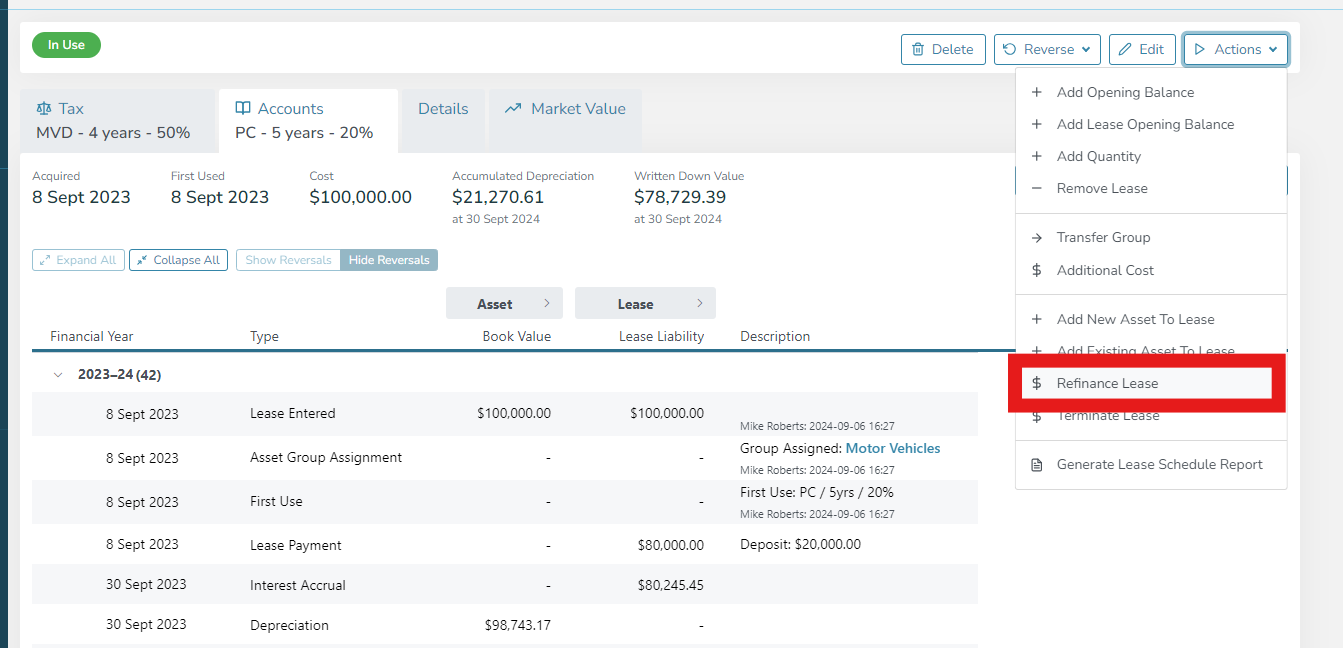
To refinance an existing lease, navigate to the "Refinance Lease" option in the "Actions" menu:
AssetAccountant will then bring up the following side menu:
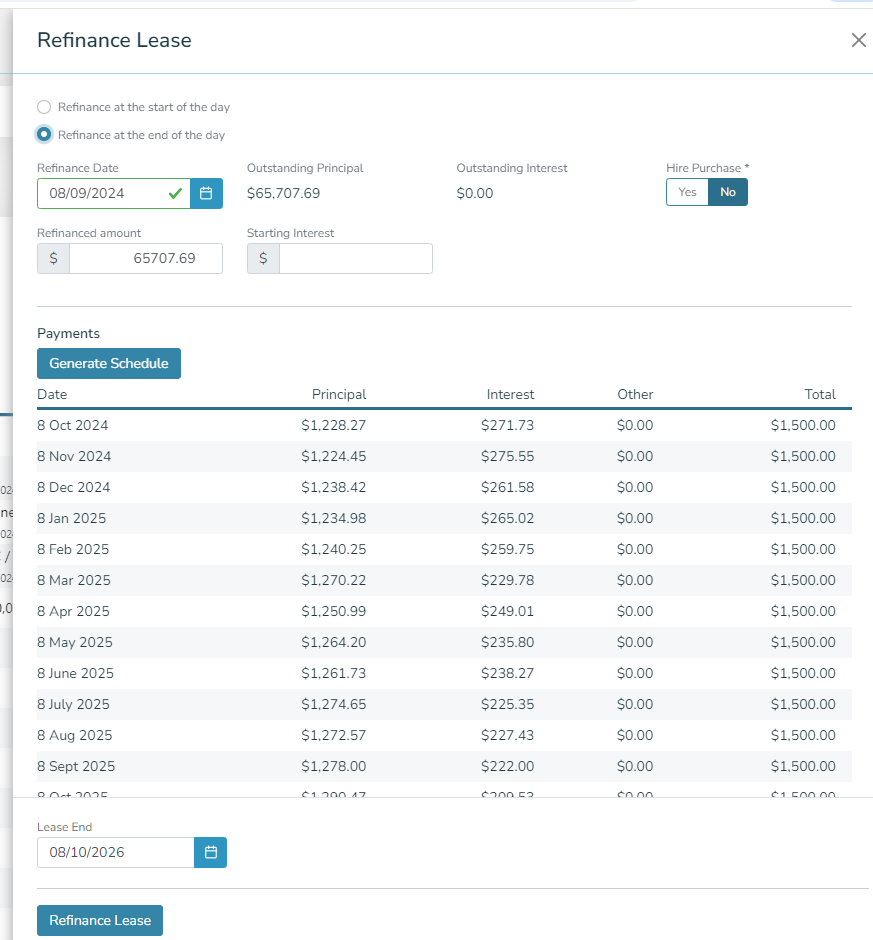
From here, you can follow these steps:
- Select whether you are refinancing at the start or the end of the day (i.e. before or after any payment that was previously scheduled on that day)
- Review the amount to be financed (the screen will show you the outstanding principal and any accrued interest as of that day) and correct it if necessary
- Click the "Generate Schedule" button
This will the allow you to enter the new schedule of payments for the refinance of the lease:
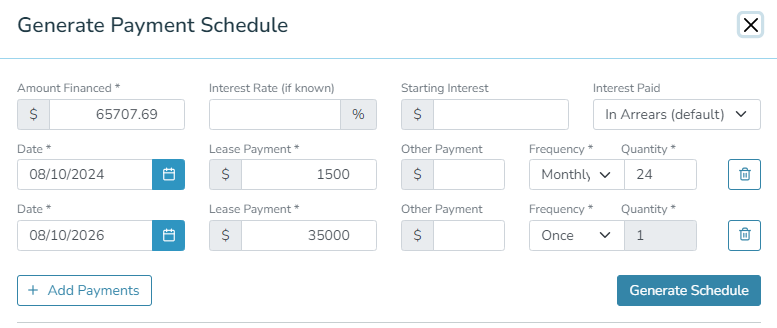
Once you have completed this, click the "Generate Schedule" button followed by the "Refinance Lease" button at the bottom of the first side panel and the lease will be refinanced.
Note that any difference between the amount outstanding and the amount refinanced will be charged to the clearing account and will most likely be an adjustment to interest charged in the month of the refinance. You can also enter this amount in the "Starting Interest" box above if you have not already paid this interest amount.
For audit purposes, when you run the Lease Schedule Report, it will show the refinanced lease details as part one and the initial lease information as part two. This will be repeated for all refinances so you always have a history of the lease.